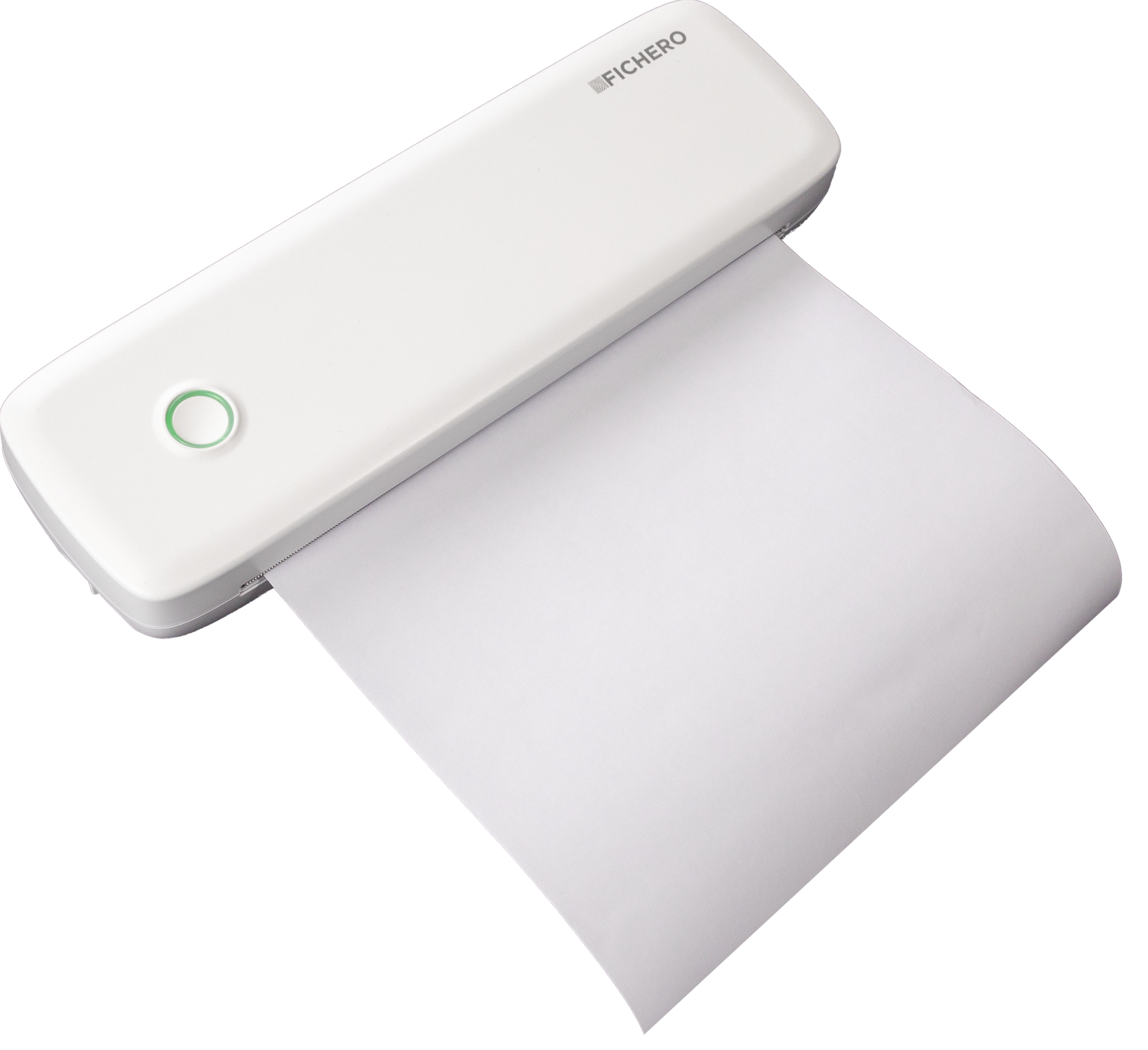
Thermal A4 Printer

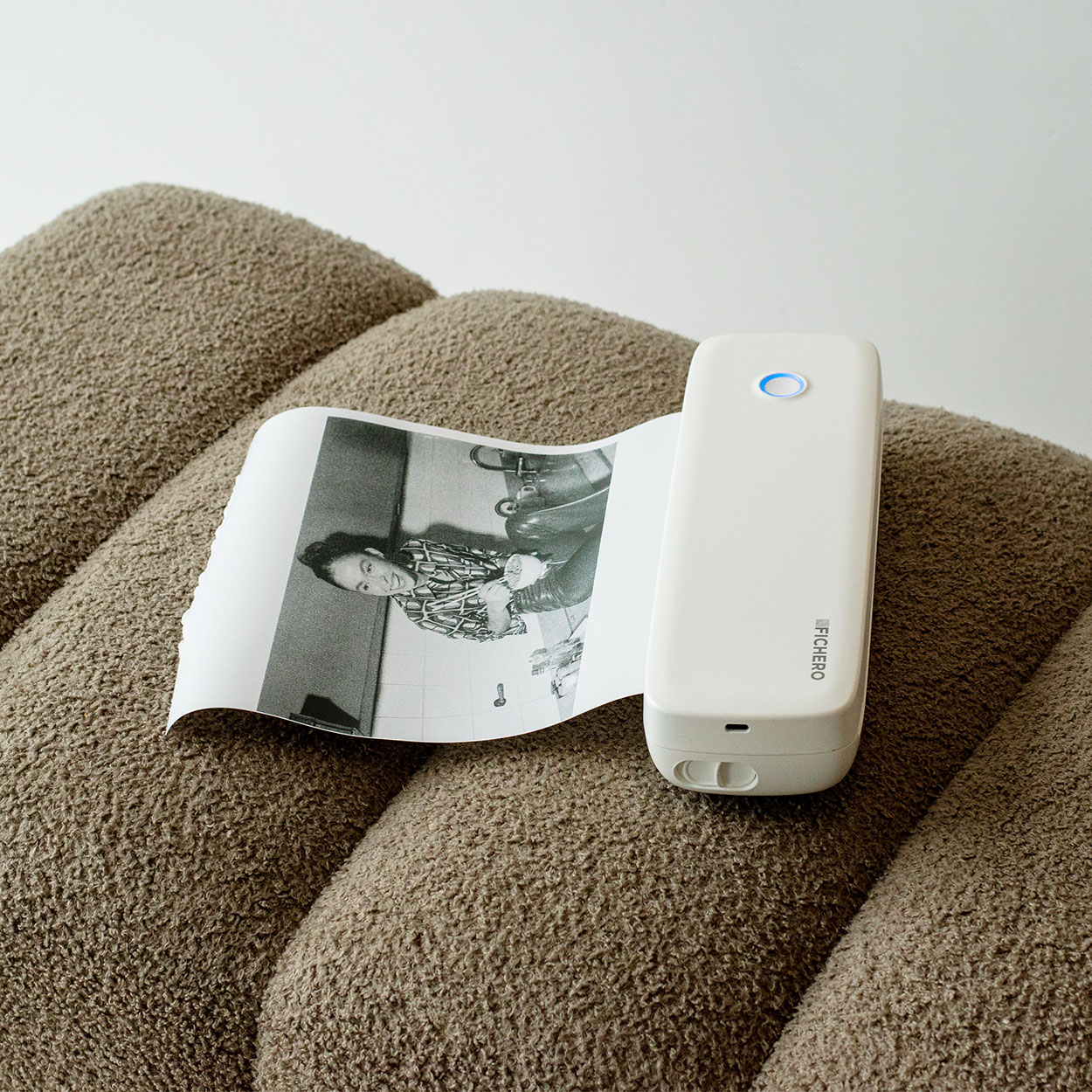
  • No ink or toner needed!
  • Print easily from your phone or tablet with the app
  • 300 DPI! Fast, sharp black-and-white printing
  • Sustainable choice
View more

About the Thermal A4 Printer

Fichero A4 Printer

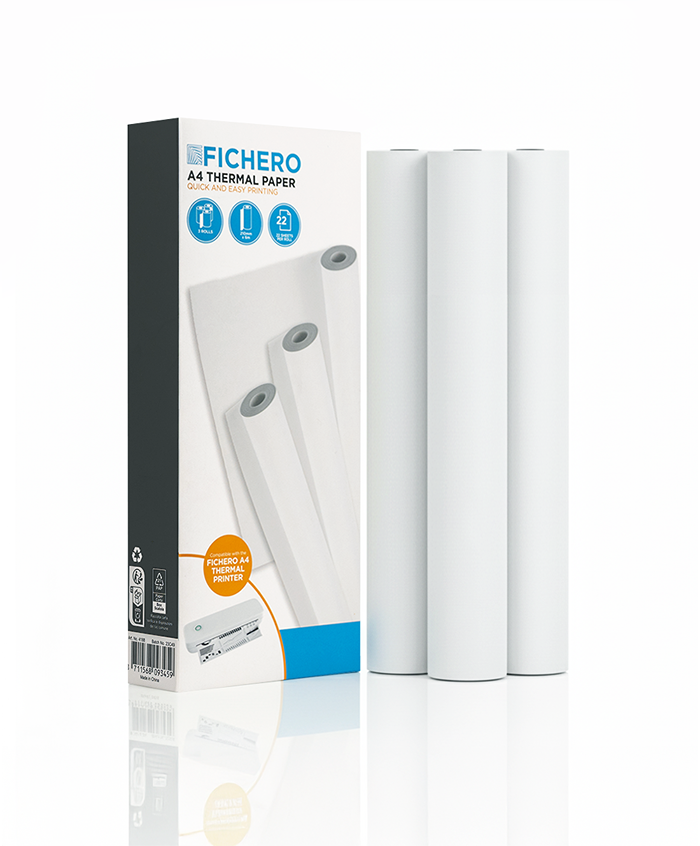
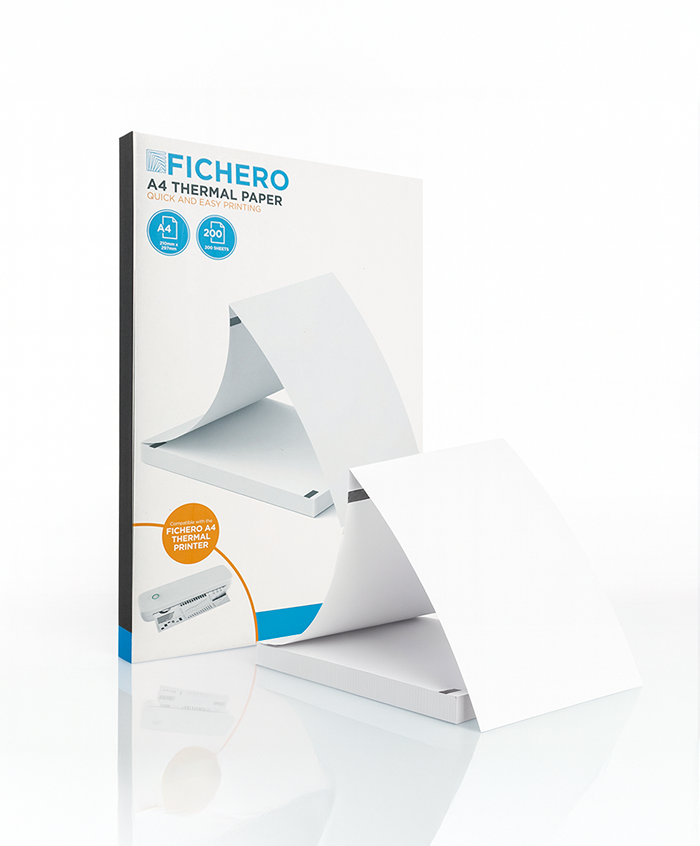
Paper Rolls – A4

View more

Continuous Paper – A4

View more

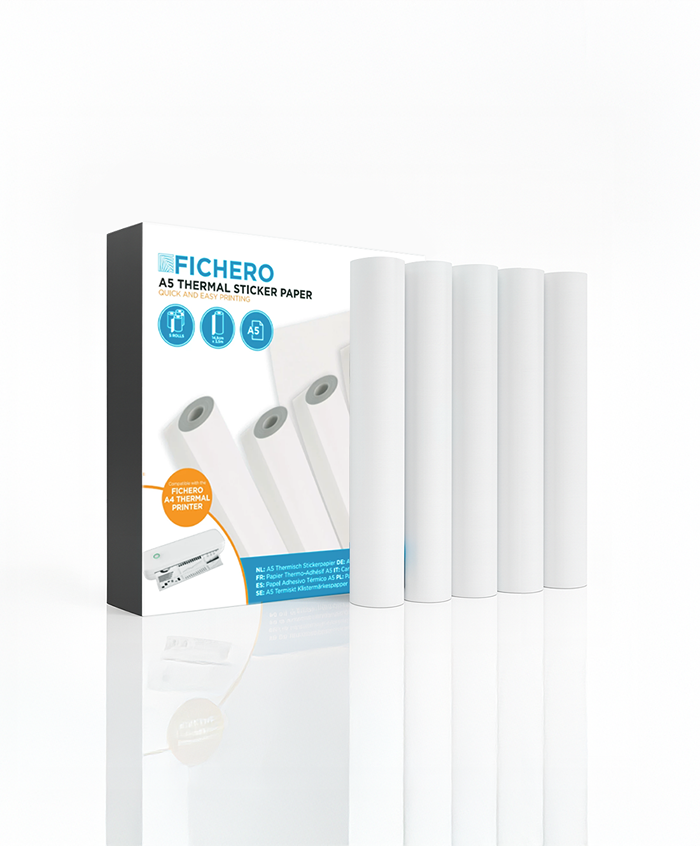
Sticker Sheets – A5

View more

How to Setup the FICHERO A4 Printer:
Your Complete Guide

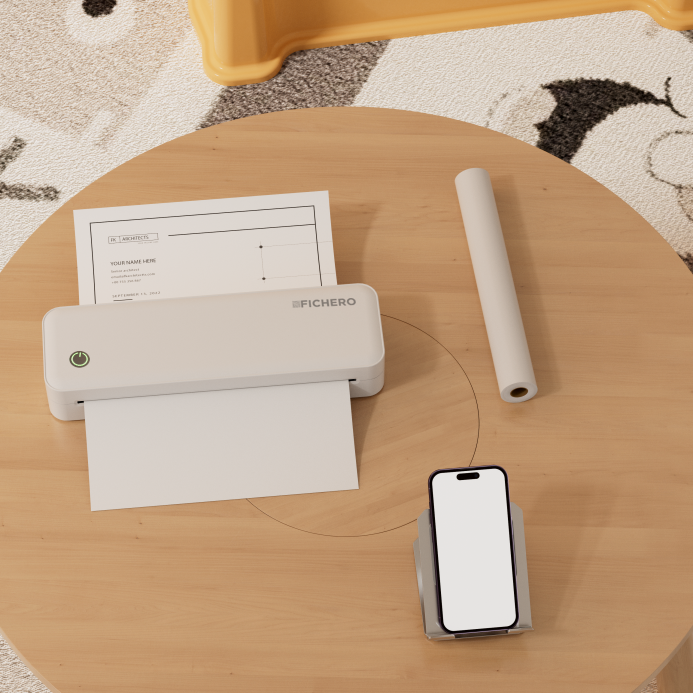
Whether you’re a professional on the go, a DIY hobbyist, or an educator, our portable A4 thermal printer is your ideal choice. Ultra-light and compact, it slips into your backpack effortlessly, enabling printouts anytime, anywhere. With Bluetooth and Type-C connectivity, it pairs seamlessly with your devices. Ditching ink and toner, its thermal technology is eco-friendly and maintenance-free. Boasting a 203dpi resolution, it produces sharp text and graphics. From contracts to shipping labels and study sheets, it prints with ease. Upgrade your printing experience—grab yours today!
Procedure of installation

Step 1: Download the app

For Mobile:
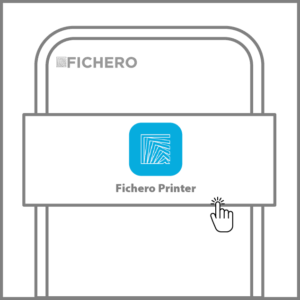
Search for the “FICHERO PRINTER” app on App Store® or Google Play for download and installation.

Method 2: Scan the QR code below to download the app.

For Desktop:
Download from https://fichero.eu/drivers/ (compatible with Windows, Linux, and Mac).

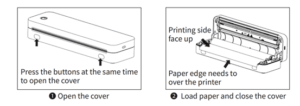
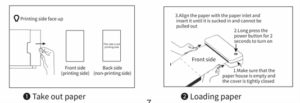
Step2: Install the paper

Roll Paper Installation Guide

Fold Paper Installation Guide(Make sure there is no roll paper in the printer)

Step 3: Printing via Mobile App

1. Enable Bluetooth:

iOS: Turn on Bluetooth and allow FICHERO PRINTER to access.
Android: Turn on Bluetooth and Location, then allow FICHERO PRINTER to access.

2. Open the Fichero Printer App

Allow the app to connect to nearby devices and location

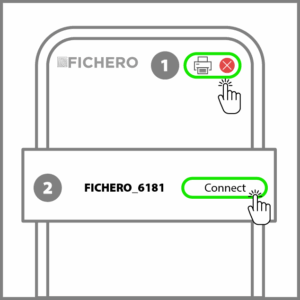
3. Connect the printer

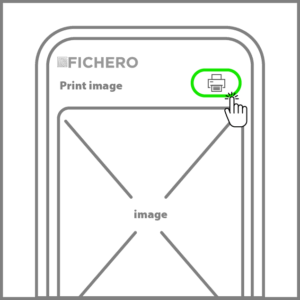
Open the FICHERO PRINTER app → Tap printer icon in the upper right corner → Connect the printer.

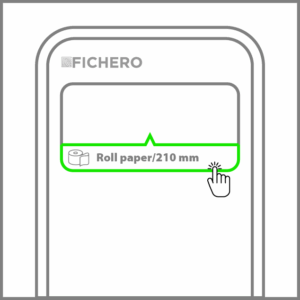
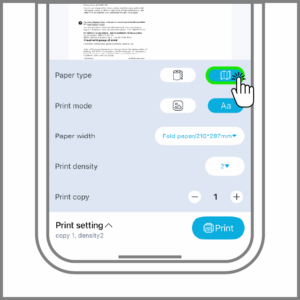
4. Set Paper Options:

  • Tap the paper type and paper width.
  • Select the paper type and width → Tap Confirm.

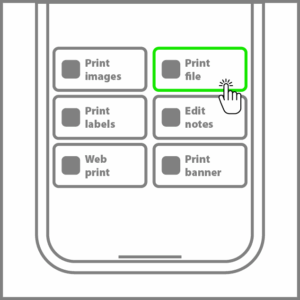
5. Choose a Printing Option:

  • Document Print: Import a Word, PDF, Excel, PPT, or TXT file from your phone.
  • Image Print: Import an image from your photo album.
  • Scan Print: Take a photo to print directly.

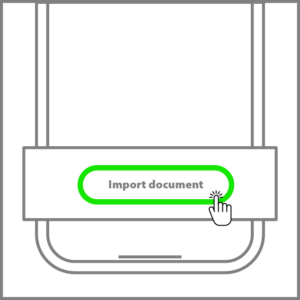
6. Import the Document:

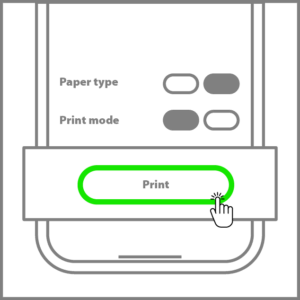
7. Edit your image and tap Print

Troubleshooting

1. Cannot connect to printer

  • Ensure Bluetooth and Location permissions are enabled on your phone.
  • Confirm the printer is not already connected to another Bluetooth device.
  • Restart the printer, the app, and your phone, then try connecting again.

2. Unable to connect by scanning QR code:

  • Make sure the QR code paper is flat and clean. Wrinkles or stains may prevent recognition.
  • If the issue persists, contact customer support.

3. Blank printing

Check if the paper is installed in the correct direction. Reinstall if necessary.

4. Print quality is unclear

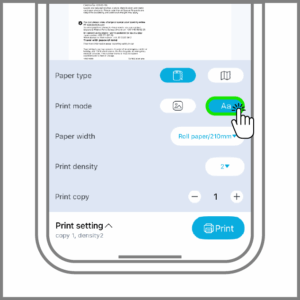
Confirm “Print Mode” is selected before printing.

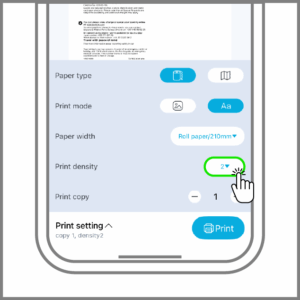
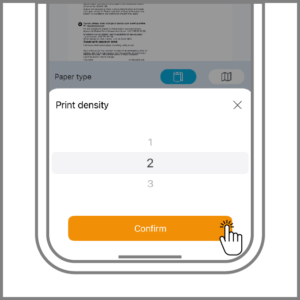
Adjust the print density as shown in the settings.

5. Label printing continues without stopping at the tear-off port

  • Verify that the correct consumables are being used.
  • If not, switch to the correct ones as shown in the instructions.

6. Unable to charge:

  • Check if the USB cable is properly inserted. Re-plug and test.
  • · Confirm the adapter meets the 5V2A requirement. Replace if necessary.
  • If charging still fails, replace the USB cable and test again.

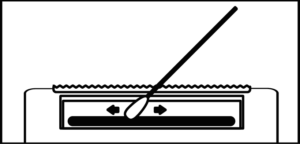
7. Cleaning the printer head:

  • Turn off the printer, open the cover, and remove the paper.
  • Dip a cotton swab or soft cloth in medical alcohol and gently wipe from the center outward along the printer head.
  • Wait 1–2 minutes until the alcohol has fully evaporated before using the printer again.

Adress

Overschiestraat 63
1062 XD Amsterdam
T: +3120 – 261 4883
E: customerservice@fichero.eu

About Fichero

Fichero stands for ease of use, quality and innovation.

We offer smart office supplies and printing solutions such as portable printers, label printers and accessories that make everyday printing easier and more efficient.

With a focus on modern technology and stylish design, Fichero combines functionality with reliability — perfect for both home and office use.